GTA VI Not Enough Storage on Xbox Series S? Here’s How to Make Room
See which drive GTA VI needs on Xbox Series S, calculate how much space to free, and make room without buying an expansion card if you can.
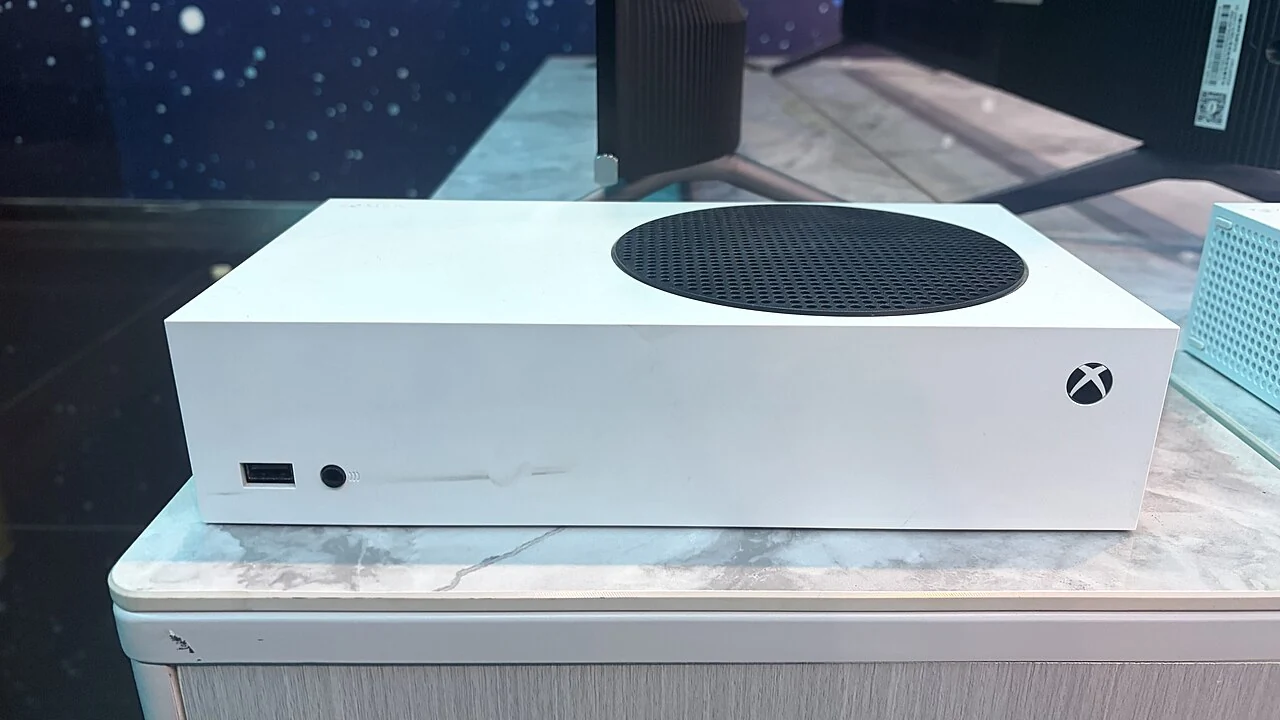
Find out how much space you actually need
If your Xbox Series S says there isn’t enough space for GTA VI, check free space on the intended install drive first. Start with the internal SSD if you don’t already own a compatible Xbox Storage Expansion Card. An ordinary USB drive can hold games you move out of the way, but it’s not the drive to pick for playing GTA VI locally. You may be able to make enough room without buying anything.
Rockstar says the GTA VI preload can require up to 212 GB of available space, depending on the device. That is the official planning figure, not a promise that every Series S will show that exact number. Use the amount the game or Xbox install prompt shows on your console. The 512 GB printed on a Series S describes its advertised SSD capacity. How much room you have for this install depends on what your console shows as free. Updates can change the amount a download needs, so recheck the message if you come back to this guide after launch.
Open Settings, then System and Storage devices, and look at the internal drive. If you have another drive attached, check its name and available space separately. Then return to the GTA VI install prompt and note the requested amount. Subtract the available space from the requested space if the requested amount is higher. If the prompt says 205 GB and the internal drive has 160 GB available, for example, your shortfall is 45 GB. Those numbers are just an example. Use your own before moving or deleting a game.
- Find the requested amount in the GTA VI install prompt.
- Check the free space on internal storage or your compatible expansion card.
- Move or uninstall enough game files to close the gap, then retry from Queue.
Choose the quickest way to make room
If you can move one game you want to keep
Start with a large game you won’t need during your next few sessions. From My games & apps, highlight the game and open its management options. Check the installed size and the drives Xbox offers for moving or copying it. If you already own a compatible USB drive set up for games, move the older install there. If Xbox asks you to format a drive before using it, check its contents first. Formatting can erase what is already on it. Moving takes it off the original drive. Copying leaves it there, so copying alone won’t solve your space problem.
After the transfer finishes, check free space on the internal SSD again. If it covers the amount GTA VI requests, stop moving games and retry the install. If you’ve moved a Series X|S title to USB, plan to move it back to internal space or a compatible expansion card before playing it again. For older compatible games, Xbox says certain titles can run from a supported USB drive. Check the game you’re moving and the console’s own prompt.
If you don't own another drive
Look for a game you can reinstall later and won’t miss right now. In the game's management screen, check the sizes of the main install and any optional content the console shows. If a removable add-on covers the shortfall and you're sure you can do without it, check that option before uninstalling an entire game. Otherwise, uninstall an installed game you can download again. Focus on the game files. Leave saved data and personal captures alone unless you have a separate reason and a verified backup.
Start with the smallest combination that covers the shortfall with a little breathing room. If one 60 GB game is enough, you don't need to remove three games and discover later that the first one would have done it. When bandwidth is limited, consider which games would cost you the least time to redownload. That can make a smaller cleanup more useful than clearing a whole drive.
If GTA VI already started downloading
If the console offers a way to continue a partial installation, leave the existing queue entry in place. Make room on the drive the job expects, check the available space again, then try to resume from Queue. If Xbox asks you to choose a storage location, read the options before confirming. Avoid starting a second install from another account or changing several settings at once. Watching what the queue does after one change helps you identify whether storage was the problem.
What internal storage, USB and expansion cards can do
The internal SSD is where most Series S owners should try installing GTA VI first. Xbox identifies GTA VI as a native Series X|S game, and its storage guide explains that the internal drive and compatible Storage Expansion Cards support running games optimized for those consoles. If you already have a compatible expansion card attached and it has enough free space, check that Xbox lists it as an eligible destination before moving anything from internal storage.
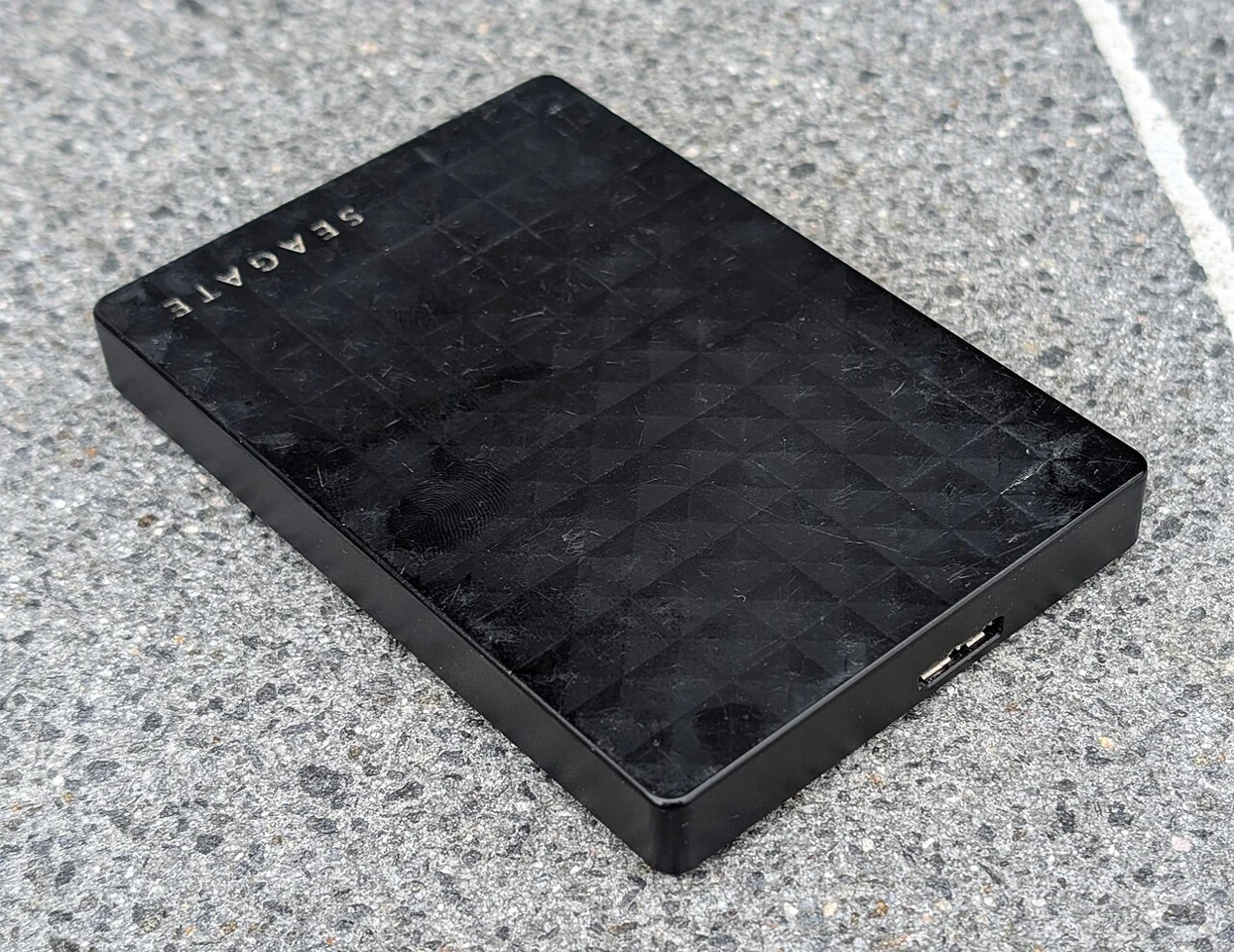
A regular external USB hard drive or USB SSD has a different job. It gives you somewhere to keep game files you don’t want to redownload. Xbox explains that USB can store Series-optimized installs for later transfer. The speed or brand on the enclosure doesn’t turn it into a card that plugs into the console’s Storage Expansion port. A fast USB SSD can still be useful if your plan is to move other games off the internal drive.
If you compare store listings, check the product description and connector. “Works with Xbox” can mean the drive can store game files. Look for explicit Xbox Series X|S Storage Expansion Card compatibility if you need to play Series-optimized titles directly from that device. This distinction matters more than a long list of advertised read speeds. For most people trying to fit one game today, the least expensive option is to see what can be moved or removed from storage they already have.
Three situations and what I’d check first
If you have 160 GB free and GTA VI asks for 205 GB, you need to recover at least 45 GB on the intended drive. Moving a 60 GB install off that drive would, in this example, leave 220 GB free. Verify the new amount on the console before starting the install. A large game listed in your library may not actually be installed on the drive you’re trying to clear, so check the source drive before choosing it.
If you have plenty of free USB space and very little internal space, treat USB as a place to put other games. Move one of those games to USB and put GTA VI on internal storage. If you have more than one storage device attached, use the names and free-space readouts in the settings screen so you know which one is receiving the files. A drive with a familiar brand name can still be the wrong destination.
If you have a compatible Storage Expansion Card with room but your install still reports a shortfall, check which drive the queue is using. The prompt may be trying to install to internal storage. Choose the eligible card when the console offers the destination choice. If the card isn’t listed, check that the console recognizes it under Storage devices and follow the manufacturer’s instructions before assuming you need a different drive.
If Xbox still says you don’t have enough space
Recheck the internal drive after the move or uninstall. Make sure the transfer completed and check the number the GTA VI prompt shows now. If the game asks for more space than before, use that updated number. If the internal drive has plenty of room but the error persists, look at the destination selection and the current queue. Another game downloading in the background may change what is available by the time you retry.
If your console offers a message like “needs faster storage,” that points to the type of drive and deserves a different check from “not enough space.” Read the exact wording instead of assuming the two messages mean the same thing. For a drive-type warning, choose the internal SSD or a compatible expansion card. For a capacity warning, confirm the available space on the chosen drive. If other installs also fail and you see a broader service warning, check Xbox status before making more changes to your games and storage.
When the same error persists, save the exact wording and note your console model, drive type, free space, and whether the problem is with the main game or an update. You can give those details to Xbox support without sharing a password, order screenshot or redemption code. Start with platform troubleshooting for an install error. If the store can’t find your copy on the account that bought it, check ownership before doing more storage work.
When it’s ready, check the queue and the unlock time
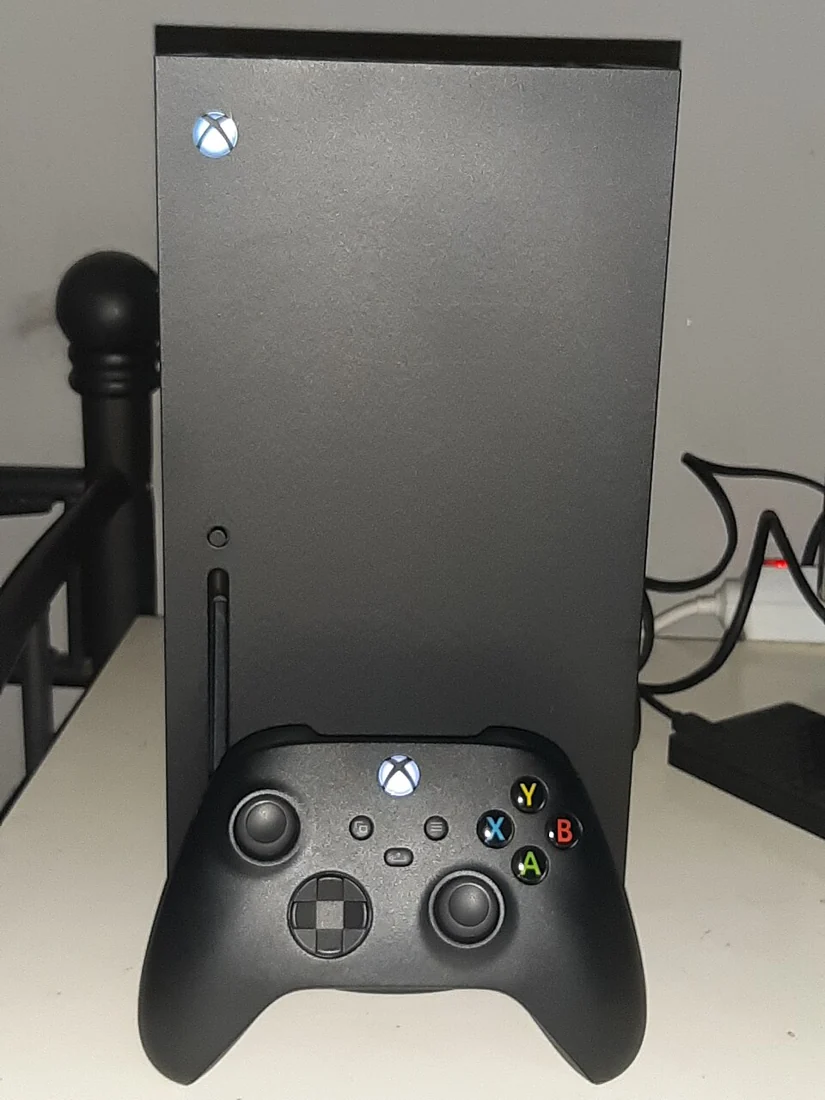
After you free the space, check that GTA VI is downloading to the intended drive. When the queue shows it’s done, keep the files installed and check the unlock time for your region. Before release, a finished preload can still be locked. For the Xbox One, there’s no local Series install to make room for. Xbox points those players to Xbox Cloud Gaming where available. We link both routes below so you can use the one that matches your actual console.
If you’re deciding whether to buy extra storage later, keep a short list of the games you want installed at the same time. A card makes more sense if you regularly struggle to keep those games playable together. If you only needed space for GTA VI and already moved a game you hardly use, wait until you have a reason to spend. For tonight, the useful check is simple: confirm the drive, confirm there’s enough room, and confirm the queue. Then use the free launch checklist for the rest of setup.
Related guides and tools
- Run the free GTA VI launch checklist
- Check Rockstar’s GTA VI preload storage figure
- Follow our preload guide after freeing space